Put Your Face in the Bulin 47 Video: Photo and Likeness Guide
To put your face into the Bulin 47 video, start with one clear photo of yourself or an adult who agreed. The prepared reference supplies the movement; your image supplies the replacement appearance. A better source gives the model clearer features to work with, but cannot guarantee a perfect likeness through every turn.
This guide focuses on photo choice and a weak face swap: crop, lighting, obstructions, review and a targeted retry. For sign-in, credits, job status and downloading, follow the complete generation tutorial.
Quick answer: how to put my face into the Bulin 47 video
Use one sharp, front-facing adult photo with the eyes, jaw and shoulders visible. Run the free photo check, correct any specific warning, then inspect the completed video during head turns and when a hand crosses the face. Passing the check does not predict final likeness. If the result drifts, change one source-photo problem before paying for another attempt.
What Changes When You Put Your Face into the Bulin 47 Video?
The template is a fixed performance reference. It does not ask an AI model to invent a new dance from a text prompt.
This distinction answers a common hesitation: you are not pretending that you were physically in the original street encounter. You are recasting the lead performer with a permitted photo. The page about who Kevin Wai is explains the real people and the source clip; this page focuses on the practical face-in-video workflow.
Your photo supplies
The lead performer’s face, hair, skin tone and visible upper-body appearance come from the photo you upload. A clearer source gives the model more stable landmarks during turns.
The reference keeps
The red-lit doorway, handheld camera path, crowd movement, speaker context, shoulder timing and original freestyle sound remain connected to the Bulin 47 reference.
The file you receive
A vertical 9:16 MP4 in your chosen length and resolution. It is an AI fan interpretation of the source scene, not documentary footage of you meeting Bulin 47 or Kevin Wai.
Six checks for a more recognisable face
Choose a clear source
Use one consenting adult in soft front light, with a sharp face and visible shoulders.
Check the crop and visible features
Keep eyes, jaw and ears in frame. A tiny face needs a closer crop; a cut-off head needs a different original.
Read the photo-check warning
Correct the named problem. A passing check means the file can proceed, not that the moving result has been approved.
Choose a test that includes the motion you need
The 6-second cut starts at the beginning. It cannot test a later turn that only appears in the 12- or 23-second cut.
Inspect likeness during movement
Watch eyes, jaw, hairline and the face after an obstruction. Compare moving frames with the source photo.
Change one thing before retrying
Replace the weak crop, lighting or obstruction. Higher resolution does not recover facial detail absent from the source.
Step 1: Choose a Photo That Can Survive the Bulin 47 Turn
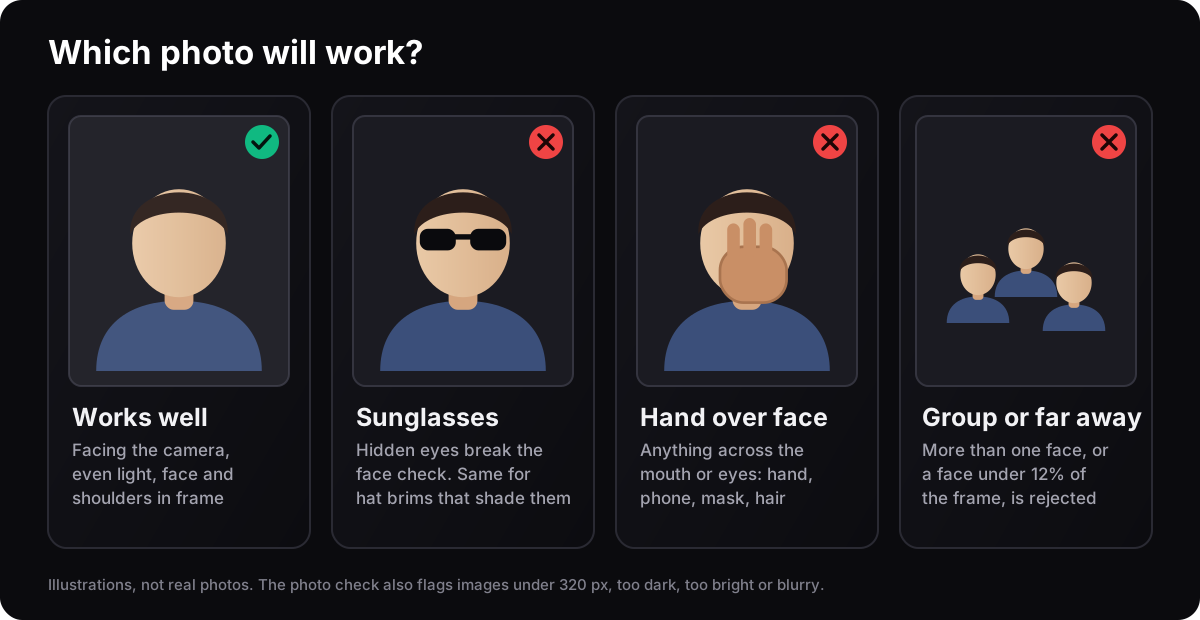
The photo is the part you control, so it deserves more attention than the upload button. Choose one adult, facing the camera, in soft even light. Keep the full face, jawline, ears and shoulders visible. A neutral expression and a little space around the head give the face tracker room when the reference performer turns.
Use JPG, PNG or WebP under 4 MB and at least 320 pixels on the shortest side. Avoid group photos, sunglasses, a hand over the face, extreme beauty filters, a deep shadow across one eye or a tiny face far away. Your clothes do not become the full costume of the reference; the uploaded image mainly supplies the identity and visible appearance of the replacement subject.
If you are making a video for a friend, ask first and use an adult’s photo only when they have agreed. Do not upload Bulin 47, Kevin Wai, another celebrity, a politician or anyone who has not consented.
Step 2: Keep the Features the Model Needs
Check the photo at its actual size. Both eyes, the nose, mouth, jawline and ears should be readable. Crop away extra background if the face is tiny, but leave room around the head and shoulders. Enlarging a blurry screenshot does not restore the missing detail.
Prefer a clean original over a filtered social-media screenshot. Remove sunglasses or a hand across the face by taking a new photo; do not expect the generator to recover the hidden features. Open the generator only after the source is ready.

Step 3: Upload Your Photo and Fix the Check Before Rendering
Choose the file and wait for the browser check. It looks for a usable face, sensible brightness, enough sharpness and one visible person. This happens before a paid render, so the check is the safest place to correct a weak source.
A “face too small” message means crop closer to your face and shoulders. “Too dark” usually needs a window or lamp in front of you, not a brighter filter. “More than one face” means choose a single-person image. If the browser cannot complete detection, you can still continue with a sharp front-facing photo, but the render is more likely to fail when the source is genuinely unclear.
The accepted-photo panel explains that the image is stored securely and deleted after 24 hours. Read the privacy policy if you need the retention details before continuing.

Step 4: Choose a Test That Includes the Relevant Movement
The available cuts start at the beginning of the fixed reference: 6, 12 or 23 seconds. A 6-second test costs fewer credits, but it cannot reveal an identity problem in a turn that happens later. Check the reference sequence and select a length containing the motion you need to judge.
720p costs 25, 50 or 100 credits for those lengths; 1080p costs 50, 100 or 200. Higher resolution adds pixels, not new evidence about your face. Keep the same options when comparing two source photos so you can tell which change helped. See pack prices before starting a paid test.

Step 5: Compare Likeness Before, During and After a Turn
Follow the job in My Videos. A running job has not failed merely because it is taking longer than expected; avoid starting another paid copy while it is still processing. When complete, compare the output with the original photo at normal playback speed, then pause on any suspicious transition.
When the video is ready, watch it from the first frame to the last. Pause during the fastest head turn, when an arm passes near the face and at the shoulder bounce. Look for a stable jawline, eyes that remain aligned, hands that do not melt into the speaker and lighting that still fits the red doorway. A good still image can hide a weak transition, so judge the moving file.

Step 6: Make One Photo Change Before Another Paid Attempt
If the face is weak from the start, use a sharper original or a closer crop. If one side looks wrong, retake the photo with even light. If features disappear only during a fast turn or behind a hand, a clearer source may help, but that movement can remain a model limitation. Repeating the same photo does not guarantee a repair.
Change one variable and compare the same moment in the next output. A new completed attempt spends credits. Failed jobs return credits automatically; dissatisfaction with likeness is not an automatic cash refund. See the refund policy for faulty completed outputs. When satisfied, use the download and posting steps.
What Your Bulin 47 Face-in-Video Result Should Look Like
The most useful comparison is the source photo next to the moving output. Inspect the turn, the arm crossing and the final shoulder bounce; a polished thumbnail alone does not prove a stable face.

Single clear adult front portrait
Portrait → Bulin 47 freestyle lead
● 100% Watermark-FreeSample renders · 9:16 vertical · output varies with the source photo
How to Fix a Bulin 47 Video When Your Face Looks Wrong
Most weak results start with the source photo or a difficult transition in the fixed reference. Use the symptom to choose the next action.
Photo checkThe photo was rejected
The photo was rejected
Likely cause
It is too small, dark, bright or blurry, or it has no clear single face.
Recommended fix
Use a sharper front-facing photo, crop to face and shoulders and remove sunglasses or hands from the frame.
Face driftMy face changes during the turn
My face changes during the turn
Likely cause
The source does not show a clear jawline or the face is too small for the tracker.
Recommended fix
Choose a neutral daylight portrait with ears and shoulders visible. Test 6 or 12 seconds before buying the full length.
LightingThe face looks too red
The face looks too red
Likely cause
The original doorway has strong red light and warm filters exaggerate it.
Recommended fix
Use a neutral, evenly lit photo without a warm filter; let the scene lighting provide the colour shift.
OcclusionA hand or phone melts near my face
A hand or phone melts near my face
Likely cause
The reference has fast occlusion and the source photo may also hide part of the face.
Recommended fix
Keep the uploaded face unobstructed. A small softness while the reference arm crosses can be normal; a persistent distortion means try a clearer source.
UploadThe upload stays on saving
The upload stays on saving
Likely cause
The connection is slow or the file is unnecessarily large.
Recommended fix
Wait briefly, then reload and try a smaller JPG or WebP. No render credit is charged during the photo upload.
AudioThe video is silent after posting
The video is silent after posting
Likely cause
The platform muted the exported audio or the original sound was not selected.
Recommended fix
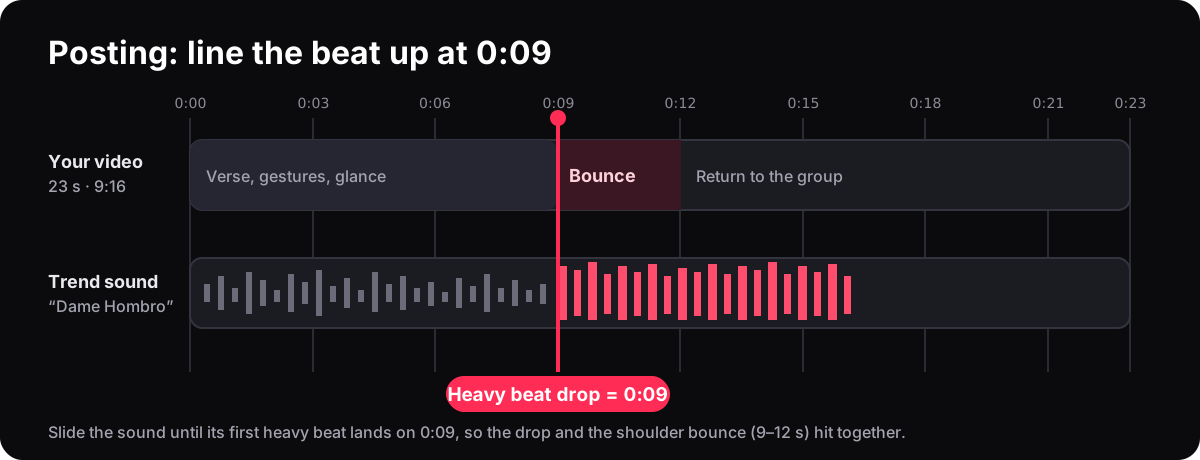
Align an available licensed sound with the visible movement in your actual export; the timestamp depends on the recording and cut.
RefundThe render failed
The render failed
Likely cause
A service timeout or a moderation check stopped the job.
Recommended fix
The credits are returned automatically. Retry with the same photo once, then use a different permitted source if it repeats.
Ready to test with a sharper photo?
Our client-side quality detector checks luminance, sharpness, and single-face geometry instantly for free.
Consent, Privacy and AI Labels for a Bulin 47 Face Remix
Use yourself or an adult who agreed
The uploaded person must be an adult and must have agreed to the face-in-video edit. Minors, celebrities and public figures are not accepted.
Keep the claim accurate
Your output is an AI fan interpretation of the Bulin 47 reference. It does not show a real meeting with Bulin 47 or Kevin Wai and is not an official collaboration.
Know the photo retention
The photo is sent over HTTPS, used to make the video and deleted 24 hours after upload. See the privacy policy for the site’s current terms.
Label realistic AI content
Turn on TikTok, Instagram or YouTube’s AI disclosure when posting. Do not use an AI edit to imply endorsement, attendance or a private relationship.
Which Face Problem Can a New Photo Address?
Use the visible symptom to choose the next action. A finished video can have model artifacts even when the input is accepted.
Swipe the table to compare tools →
| Feature & Experience | Problem | Photo change | What it may improve | What it cannot guarantee |
|---|---|---|---|---|
| Small or soft face | Features unclear in the source | Use a sharp original with a closer crop | More facial detail available | Perfect identity in every frame |
| Uneven face | One eye or cheek lost in shadow | Retake in even front light | A clearer view of both sides | Identical lighting in the generated scene |
| Covered features | Glasses, hands or hair cover the face | Choose an unobstructed photo | Less hidden detail to infer | Artifact-free hands during the dance |
| Turn-only drift | Face changes during a fast movement | Try a clearer source; compare the same moment | May improve the starting identity | Removal of a motion-related model limitation |
For pet photos, use the separate dog and cat guide; muzzle, ears, paws and body proportions need different checks.
How to Put My Face into the Bulin 47 Video: FAQ
Got questions about video credits, payment safety, or export quality? Find direct answers below.
Can I put my face into the Bulin 47 video from my phone?
What photo works best for putting my face into the Bulin 47 video?
Does the video remove Bulin 47 completely?
Will Kevin Wai still be in the Bulin 47 face remix?
Is there a free way to put my face into the Bulin 47 video?
How long does it take to put my face into the Bulin 47 video?
Why does my face change during the Bulin 47 shoulder bounce?
Can I use my friend’s face in the Bulin 47 video?
Can I use Bulin 47, Kevin Wai or another celebrity’s photo?
Why is my Bulin 47 face video silent on TikTok?
Do I need to label my Bulin 47 face remix as AI?
How is my face photo handled?
Is bulin47.website official?
More Bulin 47 Face-in-Video Guides
- Tool→
Bulin 47 Freestyle AI Video Generator
Open the generator and start with one permitted photo.
- Comparison→
Compare Video Makers Before Buying
Compare the dedicated one-photo workflow with broad AI video platforms.
- Pricing→
Is Bulin47 Free?
See what the free photo check covers and why finished renders use credits.
- Walkthrough→
How to Make a Bulin 47 AI Video
A screenshot-led guide covering the complete render and posting flow.
- People→
Bulin 47 Kevin Wai: Who Is Kevin Wai?
Separate the real street footage, the song and later AI remixes.
- Song→
Dame Hombro Bulin 47: Song and Viral Origin
Understand the release that made the freestyle searchable.
- Safety→
Responsible Use and Privacy
Review consent, likeness and upload rules before you generate.
Ready to Put Your Face into the Bulin 47 Video?
Choose one permitted photo, check it for free and see the exact render cost before you pay. Your result is a labelled AI fan remix of the reference freestyle.
Open the Bulin 47 face-in-video generatorHow This Bulin 47 Face-in-Video Guide Was Checked
This page focuses on the practical query “how to put my face into the Bulin 47 video”. Product details were checked against the current generator copy, privacy terms and pricing route; the source-scene context links to separate artist and Kevin Wai explainers.
Sources checked 14 October 2026
What this guide cannot promise
The interface, prices, queue time and platform music rules can change. Output quality depends on the uploaded photo and the difficult frames in the reference. No guide can promise a specific likeness, a perfect render or viral reach. This site is not written, reviewed or endorsed by Bulin 47 or Kevin Wai.
Choose the next page
Last reviewed: 14 October 2026 · Written and maintained by Bulin47 Studio Editorial Desk.
Key factsChecked How to put my face into the Bulin 47 video: key facts
Use one sharp, front-facing adult photo with the eyes, jaw and shoulders visible. Run the free photo check, correct any specific warning, then inspect the completed video during head turns and when a hand crosses the face. Passing the check does not predict final likeness. If the result drifts, change one source-photo problem before paying for another attempt.
- Input
- One clear photo of yourself or an adult who agreed · JPG, PNG or WebP · under 4 MB · one face
- Photo
- Front-facing, even light, face and shoulders visible · at least 320 px on the shortest side
- Output
- Vertical 9:16 MP4 · 720p / 1080p · 6 / 12 / 23 seconds · reference movement and sound
- Credits
- 720p: 25 / 50 / 100 credits · 1080p: 50 / 100 / 200 credits · exact cost shown before payment
- Render time
- Time varies with queue and settings; failed renders return their credits automatically
- Privacy
- Uploaded photos are deleted 24 hours after upload
- Consent
- Adults who agreed only; no minors, celebrities or public figures
- Affiliation
- Independent fan-made tool, not affiliated with Bulin 47, Kevin Wai, TikTok or a label
Written and maintained by the Bulin47 Studio editorial teamPublished Last updated