How to Make a Bulin 47 AI Video: Step-by-Step Guide with Screenshots
How to make a Bulin 47 AI video is also how to generate one, as many people search it: upload one clear photo, pick quality and length, pay once, and download a vertical MP4 about five minutes later. This guide walks through every screen you will see, what each message means, what it costs, and how to post the result on TikTok.
Everything below comes from the live generator on bulin47.website, an independent fan-made tool. For Bulin 47's background, see the artist profile before you follow the workflow. The screenshots were taken on 14 October 2026. The face in them is an illustration, not a real person, so nobody’s photo is shown.
Quick answer: how to make a Bulin 47 AI video
How to make a Bulin 47 AI video, in 7 steps: 1) open the generator; 2) choose a clear, front-facing photo of yourself or an adult who agreed; 3) read the free photo check; 4) pick 720p or 1080p and 6, 12 or 23 seconds; 5) sign in and pay once; 6) follow the render status; 7) download the watermark-free 9:16 MP4 and post it with sound aligned to the actual movement and the AI label on.
How to Make a Bulin 47 AI Video in 7 Steps
Open the generator
Go to the homepage generator. It runs in your browser, on a phone or a computer, with nothing to install.
Choose a photo that works
One adult, facing the camera, in even light, with face and shoulders in frame. No sunglasses, no hand across the face, no group shots.
Upload it and read the free check
Your browser checks size, light, sharpness and the face before anything is charged, and tells you what to fix.
Pick quality and length
Choose 720p or 1080p and 6, 12 or 23 seconds. The exact credit cost is shown before you pay: one 720p, 23-second video is 100 credits.
Sign in and pay once
Sign in with Google or email, then buy a credit pack with Stripe. No subscription, and credits never expire.
Wait for the render
Follow the submitted job in My Videos. A failed job returns credits automatically; a job still processing should be checked before you submit another copy.
Download it and post it
Align an available licensed sound with the visible movement in your actual export; the timestamp depends on the recording and cut.
What You Need Before You Make a Bulin 47 AI Video
One photo
A clear picture of yourself, or of an adult who has said yes. JPG, PNG or WebP, under 4 MB.
A phone or a computer
Any modern browser works, so you can generate a Bulin 47 AI video from your phone. You do not need an app.
About five minutes
Allow time to choose a clear source, review the job status and watch the complete output. Queue time varies; download before the 24-hour retention window ends.
A way to pay
Credit packs start at $8.90 and are paid once through Stripe. The photo check is free; there is no free render.
A TikTok, Reels or Shorts account
Only if you want to post it. The file is vertical 9:16 and uploads without cropping.
Nobody else’s face
Upload only yourself or an adult who agreed. Minors, celebrities and public figures are not allowed.
Step 1: Open the Generator
Start on the Bulin 47 AI video generator. The tool is the first thing on the page: a left-hand panel with the photo box, the quality and length options and the Generate button, and your examples on the right. You can look around without signing in, and nothing is charged until you choose to render.
The panel shows what you will get: the same moves, the same camera and the same sound as the viral freestyle, with your face in the lead.

Step 2: Choose a Photo That Works
The photo decides how good your Bulin 47 AI video looks, so spend your time here. The moves and the camera come from the original clip; your photo supplies the face and hair of the person in the lead, plus whatever of your upper body is visible.
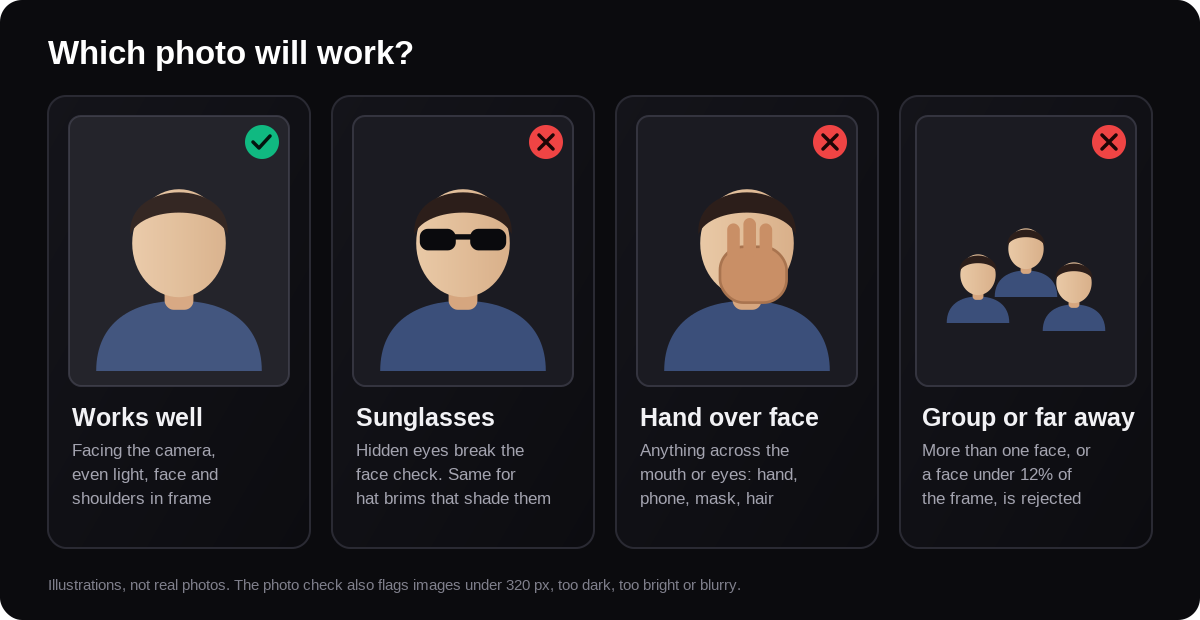
Face the camera
Straight on, or within a few degrees. Three-quarter and side profiles swap poorly, and the clip includes quick head turns that need a clear jawline to follow.
Use soft, even light
Stand facing a window. Avoid a bright light behind you and hard shadows across half your face. The red doorway in the clip adds its own colour, so a neutral photo is best; skip warm filters.
Keep your face clear
No sunglasses, mask, hand or hair across the eyes or mouth, and no hat brim that shades the eyes.
Show face and shoulders
One person, with the face filling a good part of the frame. The check rejects a face narrower than about 12% of the picture.
Use a sharp, recent photo
At least 320 px on the short side and in focus. A fresh photo beats a screenshot of a screenshot.
Using a dog or a cat instead? The Bulin 47 pet video guide covers animal photos.
Step 3: Upload It and Read the Free Photo Check
Drop the photo on the box, or click it to choose a file. Before anything is uploaded, your browser checks the image for size, brightness and sharpness, and in browsers that support it, for a single, large-enough face. If something is wrong you get a plain message and nothing is charged. When it passes, your photo appears in the box with a note that it is stored securely and deleted after 24 hours.
In browsers that cannot detect faces, such as Firefox and desktop Safari, you will see “Your browser couldn’t check this photo for a face”. You can still go ahead; the server checks the photo later, and if the render fails your credits come back automatically.

“That photo is too small…”
The short side is under 320 px. Use the original from your camera roll, not a thumbnail or a screenshot.
“That photo is too dark. Face a window or a lamp…”
The average brightness is too low. Retake it facing a window. The opposite message, “washed out”, means step out of direct sunlight.
“That photo looks blurry…”
Hold still, wipe the lens, or pick a sharper shot. Heavy compression and motion blur both trigger it.
“We couldn’t find a face” or “more than one face”
Use a front-facing photo with the whole face visible and nobody else in it.
“Your face is too small in the frame”
Move closer or crop to face and shoulders.
“That file is over 4 MB” or “Use a JPG, PNG or WebP photo”
Export a smaller JPG. Phone photos are resized automatically, but very large originals can still hit the limit.
Step 4: Pick Quality and Length
Below the photo box you choose two things: quality, 720p or 1080p, and length, 6, 12 or 23 seconds. The cost updates as you choose, and it is shown as “Estimated cost” above the Generate button, so you always know the price before you pay.
720p and 23 seconds is the standard video and costs 100 credits. Shorter cuts cost less, and 1080p costs twice as many credits. The lengths are three fixed cuts of the same clip, not a slider: 6 s ends during the glance, 12 s ends on the shoulder bounce, and 23 s is the full clip. For TikTok, 720p is plenty on a phone; pick 1080p when you will show it on a larger screen.

How Many Credits Does Each Bulin 47 AI Video Use?
The rate card is the same for every pack. 100 credits is one 720p, 23-second video, which is the Starter pack.
Swipe the table to compare tools →
| Resolution | 6 seconds | 12 seconds | 23 seconds (full) |
|---|---|---|---|
| 720p (standard) | 25 credits | 50 credits | 100 credits |
| 1080p (2× credits) | 50 credits | 100 credits | 200 credits |
So 100 credits also buys two 12-second 720p clips or four 6-second ones. See the pricing page for the current packs.
Step 5: Sign In and Pay Once
Click Generate video. If you are not signed in, a sign-in box opens and your photo stays saved. Sign in with Google in one click, or with an email and password. Your credits and your finished videos attach to this account, so you can come back to them later.
Then choose a credit pack and pay through Stripe. Packs are one-time payments: Starter is $8.90 for 100 credits, Value is $24.90 for 500 and Creator is $59.90 for 2,000. Credits never expire, nothing renews, and the exact cost of your render is confirmed before it starts.

Step 6: Wait for the Render
Once submitted, the job runs on the server. Follow its status in My Videos; queue load and output settings affect the time, so an estimate is not a deadline. You can close the tab without cancelling a submitted job. If it is still processing, check that existing job before starting another paid copy.
If the job is marked failed, its credits return automatically. If payment completed but the balance appears unchanged, confirm you are signed into the same account and check the order before paying again. Contact support with the account email and job or payment details when the status cannot be resolved.
Download a completed file promptly. Photos and videos are deleted 24 hours after upload under the retention policy; My Videos is not permanent storage.
Step 7: Download It and Post It to TikTok, Reels or Shorts
Download the MP4 from the result screen or from My Videos. It is a vertical 9:16 file in the quality you chose, with the original sound and no watermark, so it fills a phone screen and uploads without cropping.
If the posting app mutes the embedded audio, choose an available licensed sound in that app. Match a clear movement in your actual export to the beat, and lower the original track if you replace it. The street recording and studio song can have different timing. A 6-second cut has no 0:09 position.
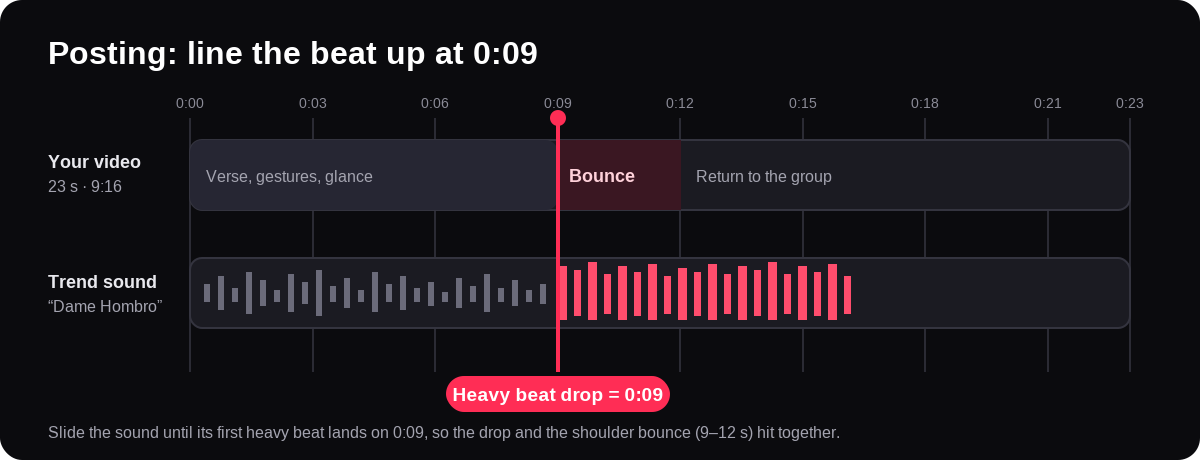
Start a new post and upload the MP4
Choose the file from your camera roll. Keep the 9:16 framing.
Add the sound if needed
Tap Add sound, search “Dame Hombro – Bulin 47” and lower the original audio if you are replacing it. Sound availability varies by country.
Align the beat to the actual movement
Play the video and move the sound until a visible shoulder accent meets the beat. Replay the opening and ending to check the whole cut.
Switch on the AI-generated label
Realistic AI content should be labelled. Turn on the setting in the post options; see TikTok’s guidance.
Add tags and post
Keep it to the trend and the format: #bulin47, #bulin47freestyle, #damehombro, #aivideo.
Ready to Make Your Bulin 47 AI Video?
The photo check is free, and you see the exact price before you pay.
Open the generatorWhat a Bulin 47 AI Video Looks Like: Photo In, Video Out
Judge a result by playing it, not by a still frame: motion is where an AI video slips. These samples show the photo next to the full clip. The famous-face samples are demonstrations only; you can upload only yourself or an adult who agreed.

Single clear adult front portrait
Portrait → Dominican Red Door Freestyle
● 100% Watermark-FreeSample renders · 9:16 vertical · results vary with the photo
What Happens in the Video, Second by Second
The camera and the moves are fixed; only the lead performer changes. Knowing the timeline helps you read a result: the hardest frames are the ones where an arm or a phone passes in front of the face, and the quick turn back to the camera.
Phase 01 · 0–5s
Verse & Street Gestures
Establishing identity in front of the iconic red door. Ambient Spanish daylight harmonizes with your facial highlights.
Phase 02 · 5–7s
Glance & Partial Occlusion
First rapid camera pan and slight 45° head tilt. Foreground crowd movement enters frame while 3D geometry holds.
Phase 03 · 7–9s
Pre-Chorus Arm Movement
Pre-chorus dembow buildup with energetic hand gestures and dynamic street crowd reactions.
Phase 04 · 9–12s
"Dame Hombro" Shoulder Bounce
★ The viral peak! Signature shoulder-shake groove drops with the heavy beat. Rapid kinetic bounces synchronized to audio.
Phase 05 · 12–23s
Return to the Crowd
Smooth turn back to rejoin the cheering street group. Camera dollies back while preserving expression consistency.
Reference 01 · Scene elements
What the reference provides
The vibrant red door background, surrounding street crowd, loudspeaker prop, original rhythm, and camera dolly movement are fully locked.
- Original street scenery
- Cheering background crowd & speaker
- Master video choreography & tempo
Input 02 · Lead subject
What your photo changes
The lead dancer’s face, hair framing, skin tone shading, and upper body proportions are reconstructed from your single uploaded portrait.
- 3D Facial landmarks & eye gaze
- Realistic skin-tone lighting match
- Upper-body movement kinetics
Limits 03 · Edge cases
Where results can vary
The model is pushed hardest during rapid 180° head turns, foreground arm occlusions, and sudden lighting flare transitions.
- Fast 180° rotation back to crowd
- Hand gestures crossing facial plane
- Extreme expression transitions
Tip: Use this timeline to judge output quality across turns and movements rather than trusting a single still-frame screenshot.
Timeline guide (approximate): 0–5s verse and gestures · 5–7s glance and partial occlusion · 7–9s arm movement · 9–12s shoulder bounce · 12s on: return to the group. A 6-second cut ends during the glance and a 12-second cut ends on the shoulder bounce. Use this to judge a sample rather than trusting one still frame.
How Much Does It Cost to Generate a Bulin 47 AI Video?
One standard video, 720p at the full 23 seconds, is 100 credits, which is $8.90 with the Starter pack. If you want several takes, the bigger packs bring the price per standard video down to $4.98 (Value, 500 credits for $24.90) or $3.00 (Creator, 2,000 credits for $59.90).
There is no subscription and credits never expire. The photo check is free, but there is no free render: every video uses credits. A failed render returns its credits automatically.

Full details and the current refund terms are on the pricing page.
How to Fix a Weak Bulin 47 AI Video
Most problems trace back to the photo. Find your symptom, apply the fix and render again; if a render failed, the credits are already back in your balance.
Photo checkMy photo was rejected
My photo was rejected
Likely cause
It is under 320 px, too dark or too bright, blurry, shows more than one face, or the face is very small.
Recommended fix
Match the message to Step 3 above, retake the photo facing a window, and crop to face and shoulders.
Rotation driftThe face changes after a turn
The face changes after a turn
Likely cause
Fast head turns need a clear jawline and ear in the source photo.
Recommended fix
Use a sharper, front-facing photo with the upper body visible and a neutral expression.
Red lightingSkin tone looks too red
Skin tone looks too red
Likely cause
The scene is lit by strong red doorway lights.
Recommended fix
Use a neutral daylight photo and avoid warm filters; the generator balances the scene lighting itself.
OcclusionA hand or phone distorts the face
A hand or phone distorts the face
Likely cause
Anything in front of the face in the source photo, or an arm passing in front of it in the clip, disrupts tracking.
Recommended fix
Keep your face completely unobstructed in the photo. A little softness when the arm crosses is normal.
UploadThe upload is stuck on “Saving your photo…”
The upload is stuck on “Saving your photo…”
Likely cause
A slow connection or a large file.
Recommended fix
Wait a few seconds, then reload and try a smaller JPG. Nothing is charged until you render.
AudioThe video is silent
The video is silent
Likely cause
The platform muted or removed the music after upload, or the post was published with the original sound off.
Recommended fix
Align an available licensed sound with the visible movement in your actual export; the timestamp depends on the recording and cut.
Consent gateThe result was blocked
The result was blocked
Likely cause
Moderation flagged a minor, a celebrity or a likeness without consent.
Recommended fix
Upload only yourself or an adult who agreed. Credits are returned for blocked renders.
RefundMy render failed
My render failed
Likely cause
A cloud timeout or a moderation flag.
Recommended fix
The credits return to your balance automatically. Retry with the same or another photo.
Ready to test with a sharper photo?
Our client-side quality detector checks luminance, sharpness, and single-face geometry instantly for free.
Consent, Privacy and the AI Label When You Make a Bulin 47 AI Video
Adults who agreed only
Generating confirms the photo is you or someone who gave permission, 18 or older, and not a public figure. Minors and celebrities are blocked.
Photos are deleted after 24 hours
Your photo travels over HTTPS, is used only to make your video and is deleted 24 hours after upload. It is never used to train AI models.
Label it as AI
These are generated videos, not documentary footage. Switch on the platform’s AI-generated label, and do not imply that Bulin 47 or Kevin Wai took part or endorse it.
Independent fan tool
bulin47.website is not affiliated with Bulin 47, Kevin Wai, TikTok or any record label. Read the responsible use policy and privacy policy.
What to Do at Each Job Status
Check the existing job and account before starting another attempt. A payment receipt and a completed video are different events.
Swipe the table to compare tools →
| Feature & Experience | Status you see | What it means | Next action | Credit or payment check |
|---|---|---|---|---|
| Before submission | Photo or settings need attention | The paid job has not started | Correct the named input or setting | Check the selected render cost |
| Processing | The job is queued or running | The submitted job is still active | Revisit My Videos rather than submit a duplicate | Do not assume elapsed time means failure |
| Failed | The job is marked failed | No completed output was delivered | Check returned credits and the error before retrying | Credits return automatically; contact support if the balance is wrong |
| Completed | A downloadable result is ready | The render used credits | Watch the full file and download promptly | Another completed attempt spends more credits |
For a different generation workflow, see the alternatives guide. For a weak face after completion, use the photo and likeness guide.
How to Make a Bulin 47 AI Video: Your Questions Answered
Got questions about video credits, payment safety, or export quality? Find direct answers below.
How do I make a Bulin 47 AI video?
How do I generate a Bulin 47 AI video on my phone?
How long does it take to generate a Bulin 47 AI video?
How much does it cost to make a Bulin 47 AI video?
Can I make a Bulin 47 AI video for free?
What is the best photo for a Bulin 47 AI video?
Why was my photo rejected?
Do I need to sign in to make a Bulin 47 AI video?
Does the video include the Dame Hombro sound?
Do I have to label my Bulin 47 AI video as AI?
Can I make a Bulin 47 AI video with a celebrity or a friend’s photo?
Can I use my dog or cat?
What happens if my render fails?
How is my photo handled?
How to generate a Bulin 47 AI video without Higgsfield, Dreamina or CapCut?
¿Hay una guía en español?
More Bulin 47 Guides
- Tool→
Bulin 47 AI Video Generator
Open the generator and put yourself in the viral freestyle.
- TikTok→
Bulin 47 AI Freestyle: Remake the TikTok Clip
The TikTok formats, four ways to join the trend and a generator-focused FAQ.
- The song→
Dame Hombro Bulin 47: The Song and the Viral Story
Who made it, when it came out and how it spread.
- The artist→
Who Is Bulin 47? Age, Real Name & Kevin Wai
A sourced profile of Bulin 47 and the creator who filmed the clip.
- The people→
Bulin 47 Kevin Wai: Who Is Who in the Viral Freestyle?
A source-checked explanation of Kevin Wai’s role, the original clip and the later AI remixes.
- ChatGPT→
Can ChatGPT Make the Bulin 47 AI Video?
What ChatGPT can plan, what it cannot prove, and how to move from a prompt to a real MP4.
- Prompt guide→
Bulin 47 AI Video Prompt Guide: Formulas & Presets
Master prompt formulas for Runway and Kling, negative prompts, and zero-prompt generation.
- Face guide→
Face Photo and Likeness Troubleshooting
Choose a photo, run the face-in-video workflow and fix the common tracking problems.
- Español→
Cómo Hacer el Video de Bulin 47 con IA (Español)
Guía paso a paso en español con el sonido de Dame Hombro.
- Pricing→
Video Pack Pricing, Costs & Refund Terms
Transparent one-time packs from $8.90 with automatic refunds.
- Pets→
Bulin 47 Pet AI Video: Dogs & Cats Freestyle
Make the clip with a dog or cat photo.
Now You Know How to Make a Bulin 47 AI Video: Make Yours
One photo, about five minutes of your time and the original sound. Open the homepage generator when you are ready; check your photo for free and see the exact price before you render.
Open the generatorSources, limits and related pages
This page owns the practical “how to make a Bulin 47 AI video” workflow, also searched as how to generate a Bulin 47 AI video. The artist and the song have their own pages, and the pricing page holds the current credit table.
What this guide is based on
Limitations
Screenshots show the generator as of 14 October 2026 and may change. The portrait in them is an illustration. Output quality depends on your photo, queue availability and platform music rules; this guide does not promise a specific likeness or viral reach. The photo check’s face detection depends on your browser.
Continue with the right page
Last reviewed: 14 October 2026 · Written and maintained by Bulin47 Studio Editorial Desk.
Key factsChecked How to make a Bulin 47 AI video: key facts
How to make a Bulin 47 AI video: on bulin47.website, an independent fan-made tool, you upload one photo, choose 720p / 1080p and 6 / 12 / 23 seconds, pay once and download a vertical 9:16 MP4 with the original sound and no watermark, after the job completes. Packs start at $8.90; there is no subscription and no free render.
- Steps
- Open the generator · choose a photo · read the free photo check · pick quality and length · sign in and pay · wait for the render · download and post.
- Photo
- One adult facing the camera, even light, face and shoulders visible; JPG, PNG or WebP under 4 MB and at least 320 px on the short side.
- Output
- A vertical 9:16 MP4 · 720p / 1080p · 6 / 12 / 23 seconds · original sound · no watermark on paid videos.
- Credits per video
- 720p: 25 / 50 / 100 credits for 6 / 12 / 23 s · 1080p: 50 / 100 / 200 credits.
- Price
- Starter $8.90 (100 credits, one 720p 23 s video) · Value $24.90 (500 credits) · Creator $59.90 (2000 credits). One-time; credits never expire.
- Render time
- Time varies with queue and settings; failed renders refund their credits automatically.
- Privacy
- Photos and videos are deleted 24 hours after upload.
- Who runs it
- Bulin47 Studio (hello@bulin47.website). Independent and fan-made, not affiliated with Bulin 47, Kevin Wai, TikTok or any label.
Written and maintained by the Bulin47 Studio editorial teamPublished Last updated